Notes
This page only covers the configuration of the link-branch version by RealThunder. Mind the version used, given below.
Creating and programming macros
Basic header.
__title__   = " "
__author__  = ""
__version__ = ""
__date__    = ""
__url__     = ""
__Comment__ = ""
__Communication__ = ""
__IconL__  = ""
__IconW__  = ""
Basic code to display a window docked on the right.
import sys
from PySide import QtGui ,QtCore

FCmw = FreeCADGui.getMainWindow()
myNewFreeCADWidget = QtGui.QDockWidget() # create a new dckwidget

##########################
class myWidget_Ui(object):
  def setupUi(self, myWidget):
    # Setup the Widget
    myWidget.setObjectName("myWidget")
    myWidget.resize(QtCore.QSize(350,100).expandedTo(myWidget.minimumSizeHint())) # sets size of the widget
    myWidget.setWindowTitle("My Panel")

##########################
#  Load and Setup the UI
myNewFreeCADWidget.ui = myWidget_Ui() # load the Ui script
myNewFreeCADWidget.ui.setupUi(myNewFreeCADWidget) # setup the ui
FCmw.addDockWidget(QtCore.Qt.RightDockWidgetArea,myNewFreeCADWidget) # add the widget to the main window
Download Qt Creator with the “open source” licence
Be careful not to forget to set a global layout so that the whole panel is visible, to avoid this:
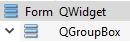
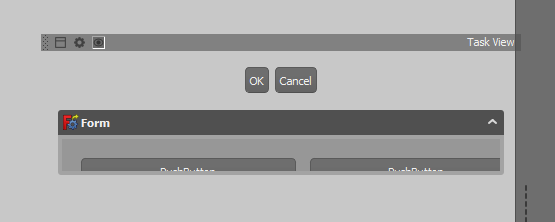 To do so, check in Qt that there are no broken or undefined layouts among the objects. If there are (see picture), right-click the object > Lay out, and choose the layout
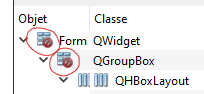
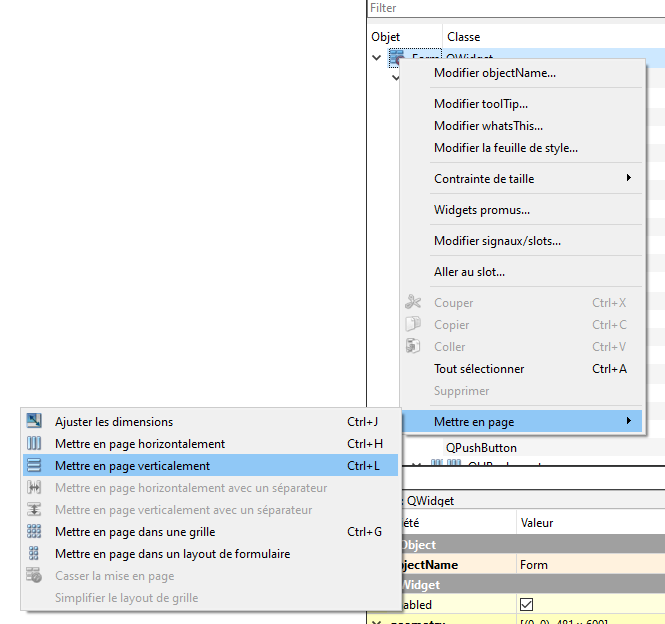 Result:
Minimum integration code:
import FreeCAD ,FreeCADGui ,Part

# CHANGE THE LINE BELOW
path_to_ui = "C:/...Path.../form.ui"

class BoxTaskPanel:
   def __init__(self):
       # this will create a Qt widget from our ui file
       self.form = FreeCADGui.PySideUic.loadUi(path_to_ui)


panel = BoxTaskPanel()
FreeCADGui.Control.showDialog(panel)
Interesting macros
Tutorials