INFORMATION
The online version can be somewhat slow. It lets you try the application before installing it on your computer, but for now it does not replace a full installation in terms of stability.
Discover Fusion 360 and install it!
Fusion 360 is a commercial software application for computer-aided design (CAD), computer-aided manufacturing (CAM), computer-aided engineering (CAE) and printed circuit board (PCB) design, developed by Autodesk.
It is available for Windows and macOS, with simplified apps available for Android and iOS. Fusion 360 is licensed as a paid subscription, with a limited free personal edition.
Fusion 360 was introduced by Autodesk on 24 September 2013. It incorporated many features of Inventor Fusion, which it replaced.
After its release, other Autodesk products were integrated into Fusion 360:
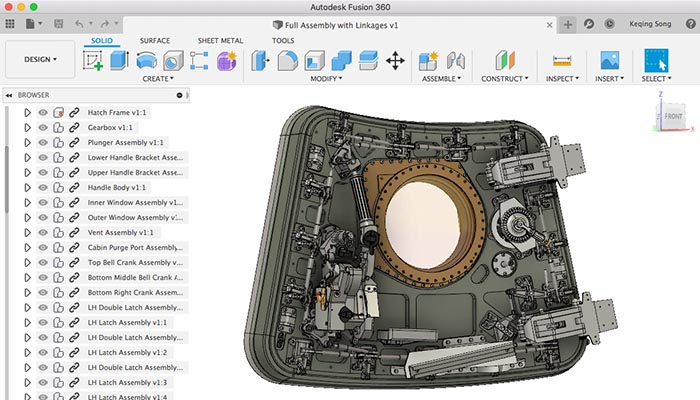
Fusion 360 has built-in capabilities for 3D modelling, simulation and documentation. It can handle manufacturing processes such as machining, milling, turning and additive manufacturing. It also has electronic design automation (EDA) features, such as schematic design, PCB design and component management.
Autodesk offers a number of paid extensions that add extra features to Fusion 360:
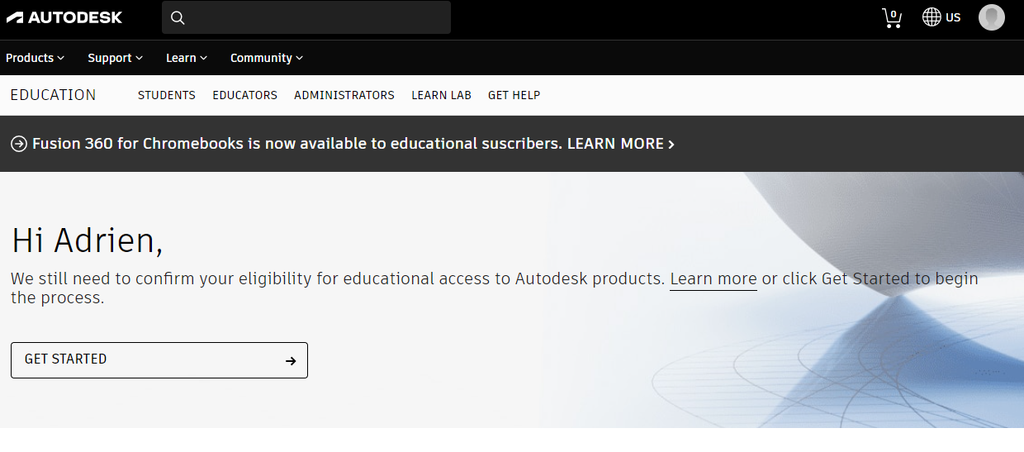
First, you need to create an online account on the Autodesk website. Go to the Autodesk website, then click Get Started. Follow the registration instructions.
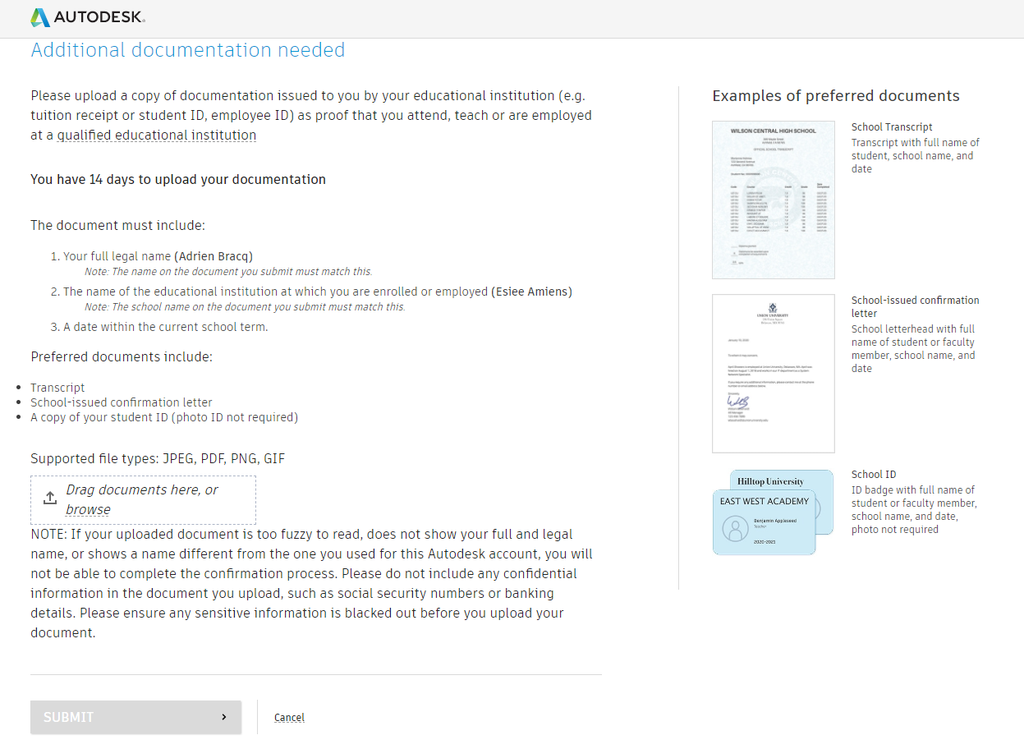
For the document to upload, you can use your student card. Take a photo of both sides and attach it on the site. Validation can take a few hours or even days; be patient. If your status is still pending after a week, tell a teacher so that they can look into it with you.
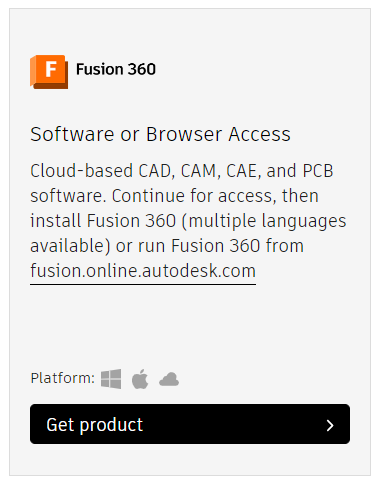
Once logged in to the Autodesk website, you have access to several programs of the education suite. Go to the Fusion 360 card, then click Get product  .
Then follow the installation instructions
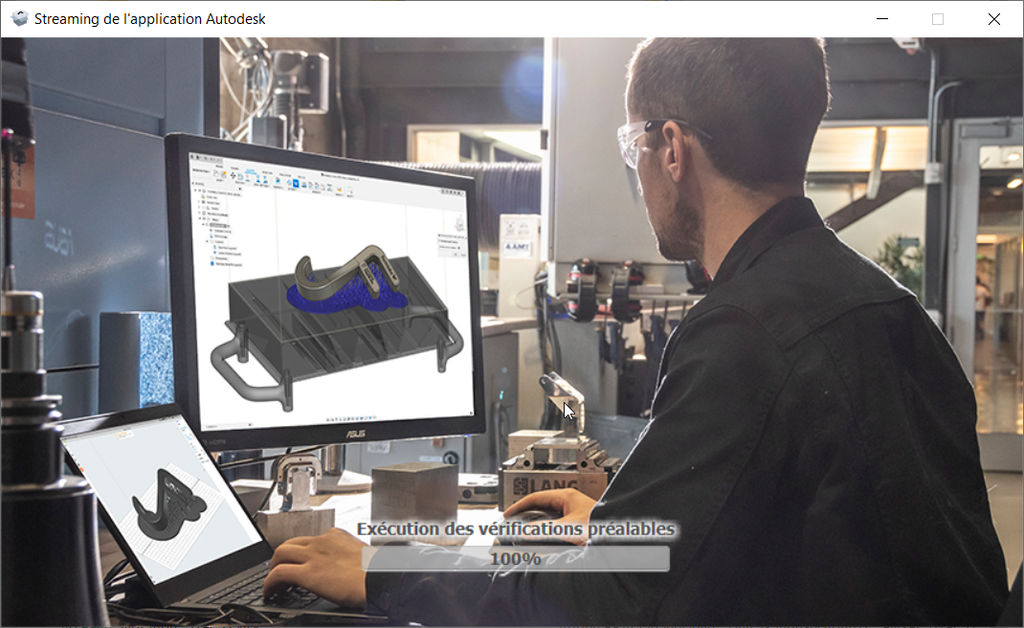
Once the client is downloaded, run it and follow the instructions.

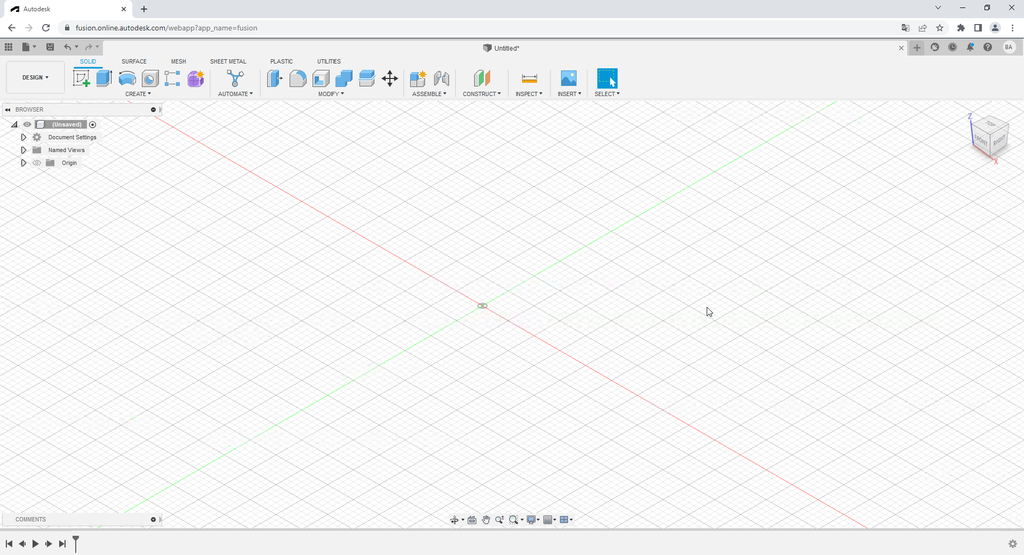
Once logged in to the Autodesk website, you can also run Fusion directly in your browser. Go to the Fusion 360 card, then click Fusion Online
 .
Then click Launch Fusion
a
You are now ready to create your first part in Fusion 360! Go to the next tutorial by following the link below.