Makerspace Amiens library
The library is available on GitHub: https://github.com/Makerspace-Amiens/kicad-library. It is updated regularly as new components are added to the stock.
Add component libraries to KiCad
KiCad: importing libraries
Learn how to import symbol and footprint libraries into KiCad, in particular the Makerspace Amiens library, which lists the components available in stock.
Prerequisites:
Software:
Machines/Tools:
KiCad organises its components in two complementary types of libraries:
.kicad_sym): the schematic representations of components, used in Eeschema.pretty folders containing .kicad_mod files): the PCB footprints used in PcbnewMakerspace Amiens maintains a KiCad library listing all the components available in stock. By adding it to your KiCad project, you have direct access to these components when designing your schematics and PCBs.
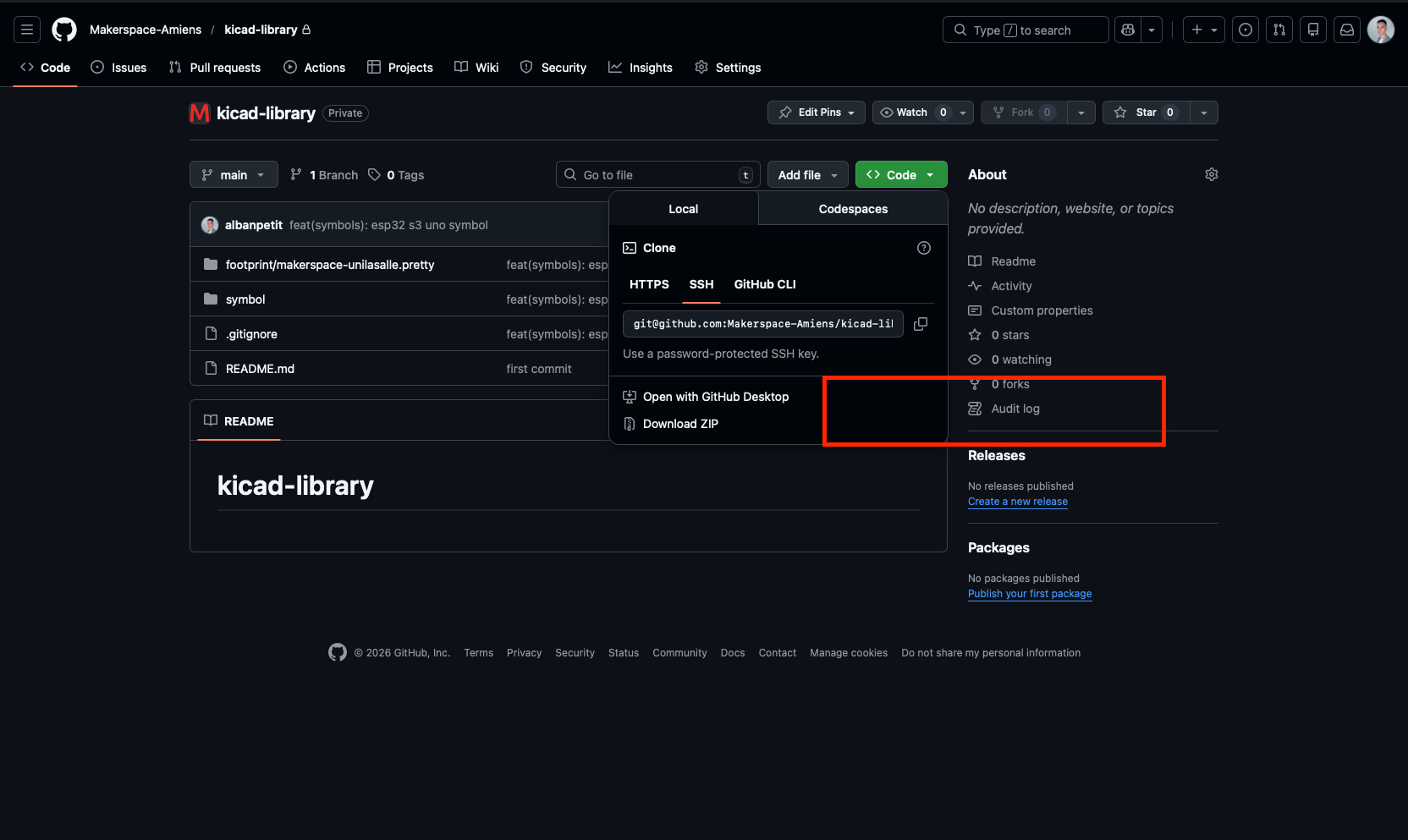
Go to the GitHub repository of the library:
https://github.com/Makerspace-Amiens/kicad-library
Once extracted, the library contains:
.kicad_sym file: the symbol library (schematic components).pretty folder: the PCB footprint library3dmodels folder (optional): the 3D models of the componentsNote the full path of the folder; you will need it for the next steps.
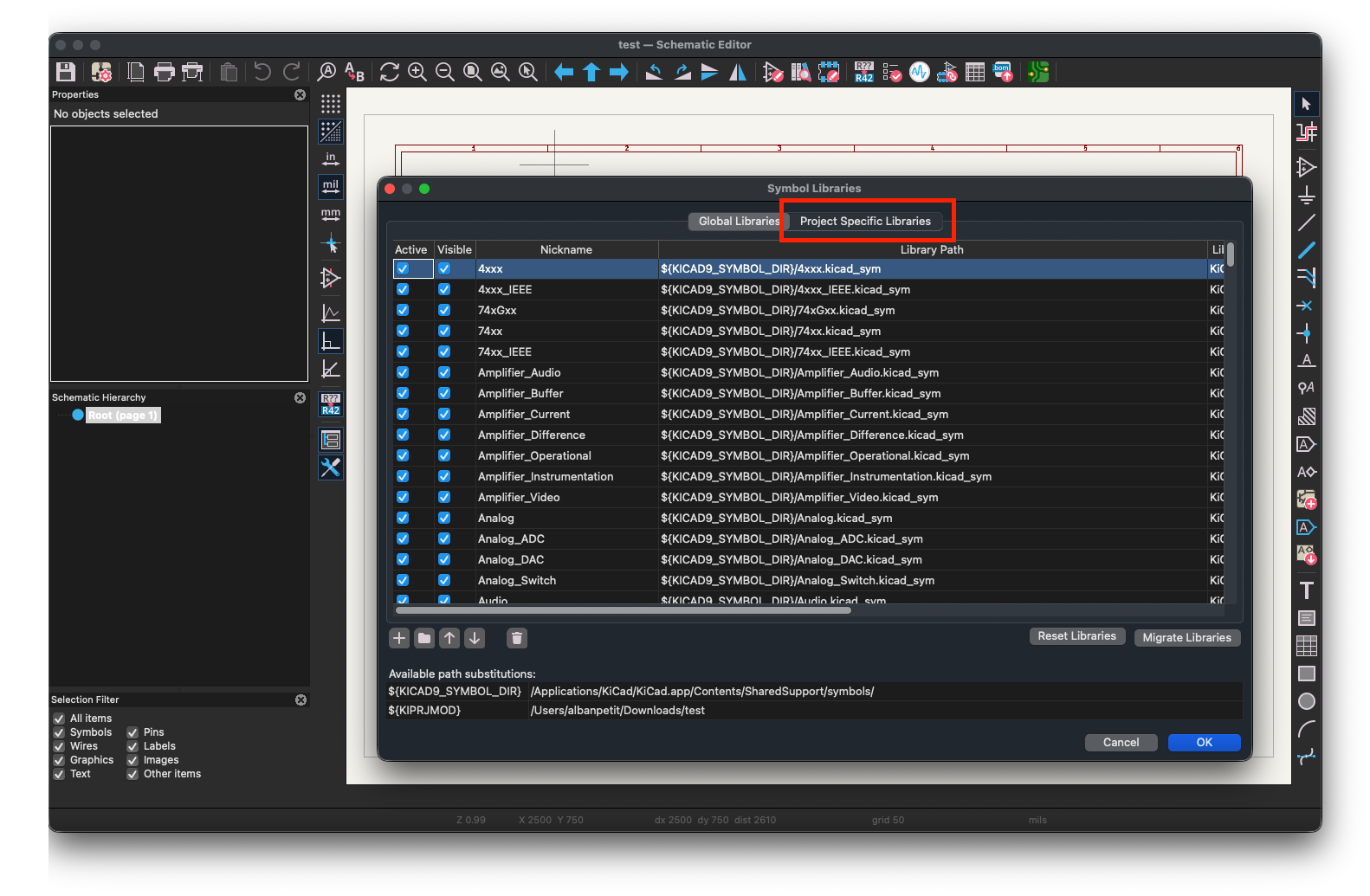
In KiCad, open your project, then start Eeschema. Go to:
Preferences > Manage Symbol Libraries…
The library management window opens with two tabs:
Select the Project Specific Libraries tab.
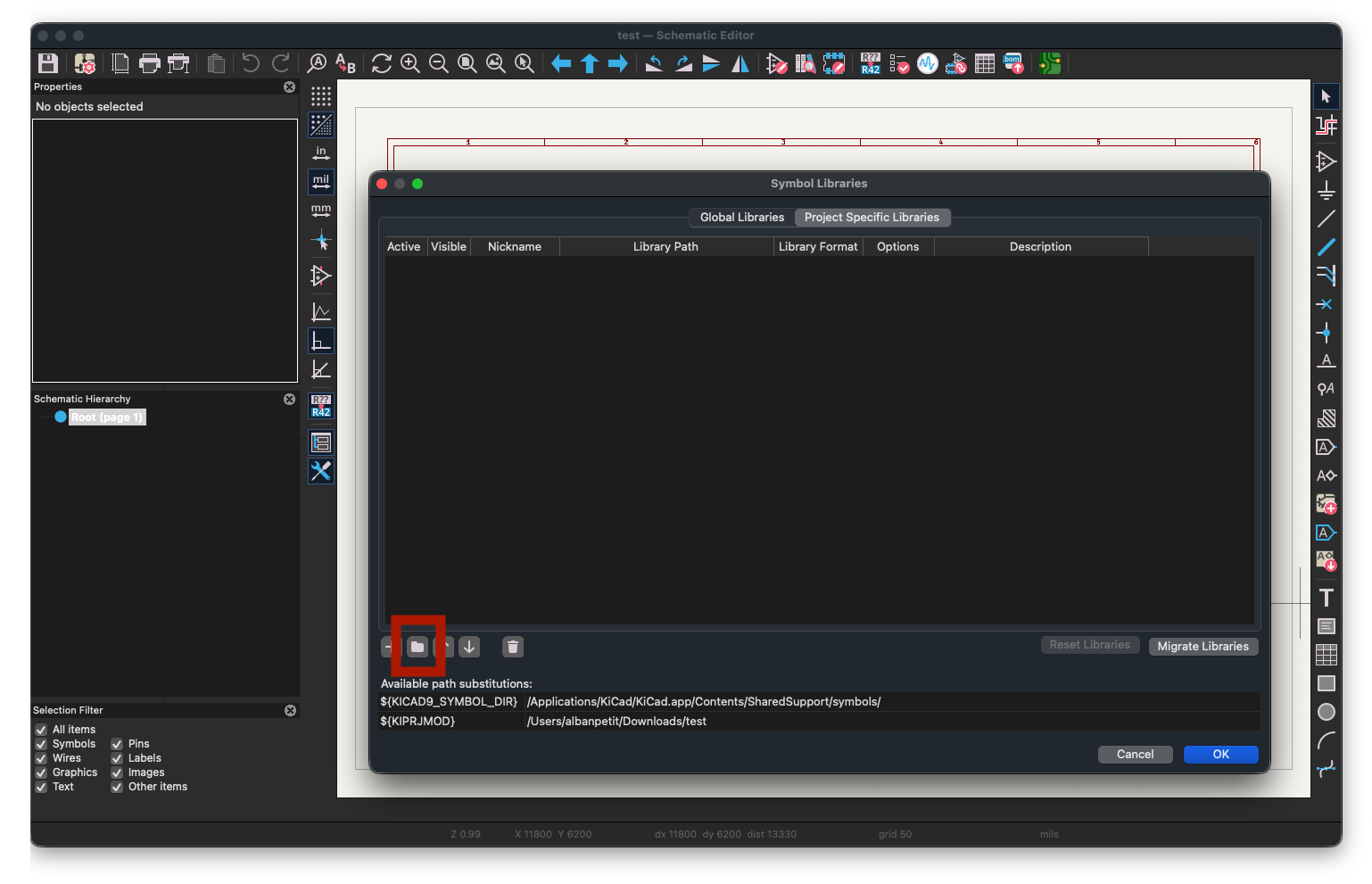
In the Project Specific Libraries tab:
.kicad_sym file of the Makerspace libraryMakerspace-Amiens to find it easily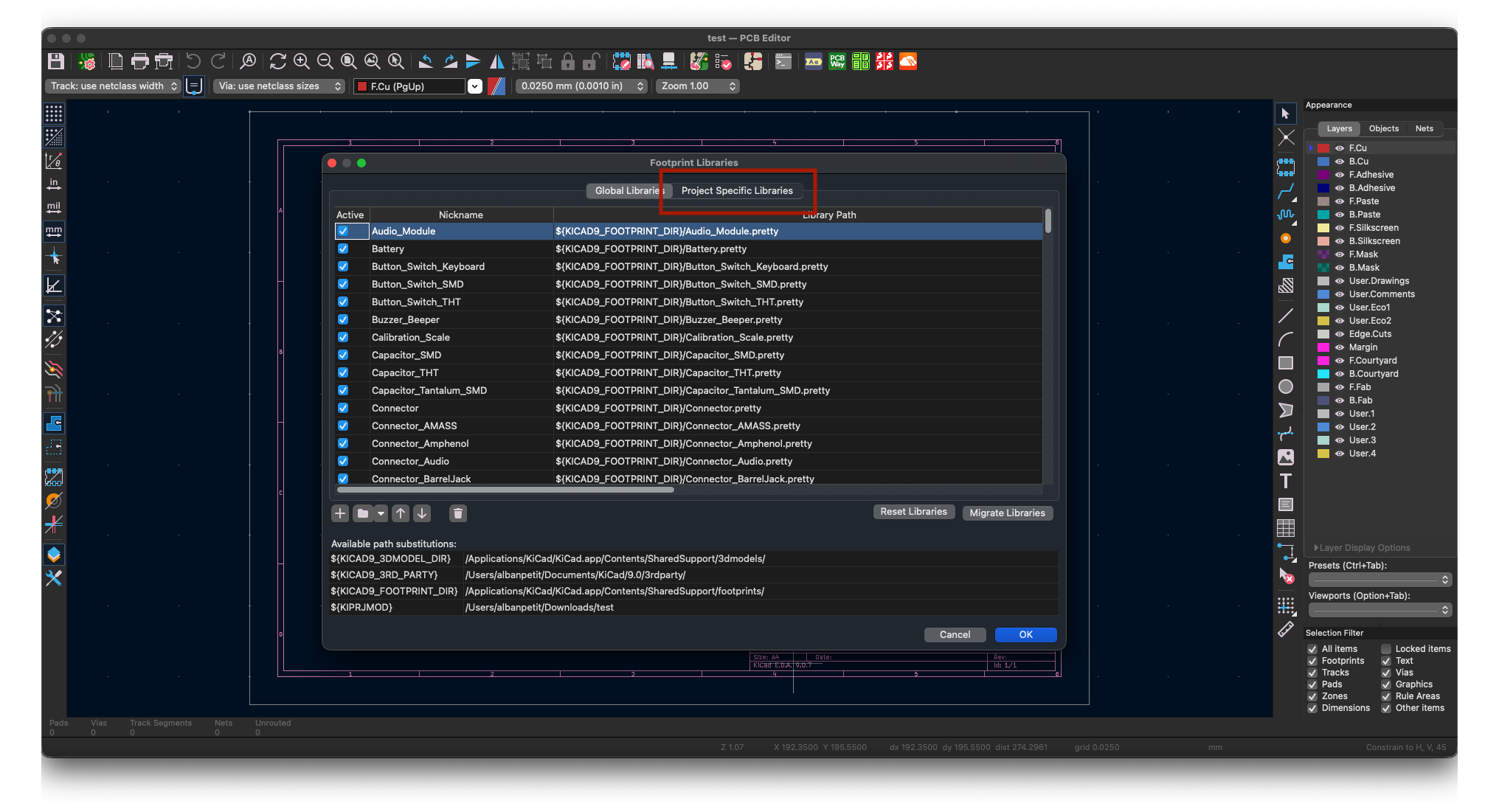
In KiCad, open Pcbnew or the footprint editor. Go to:
Preferences > Manage Footprint Libraries…
The window works the same way as for symbols. Select the Project Specific Libraries tab.
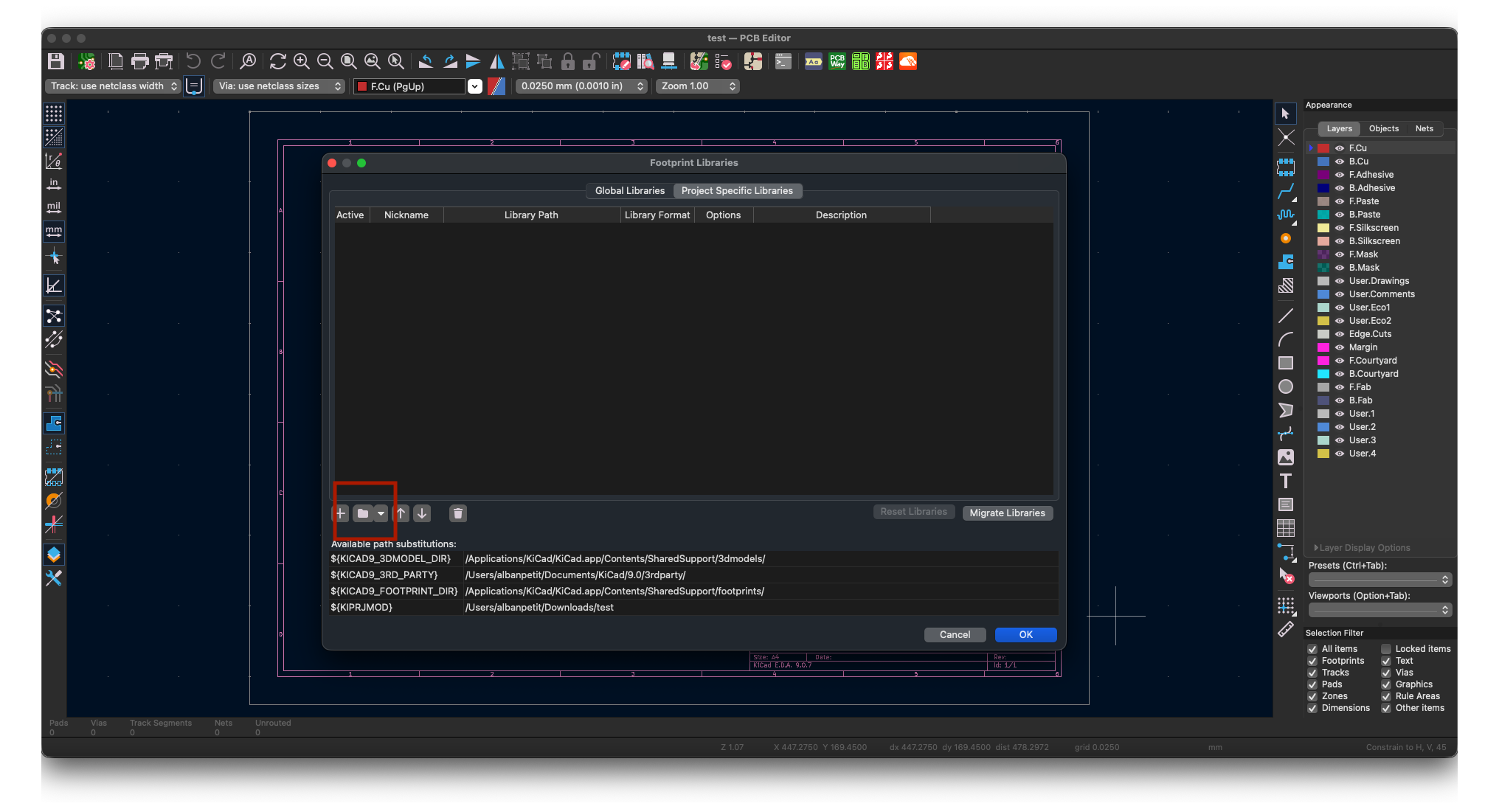
In the Project Specific Libraries tab:
.pretty folder (not an individual file)Makerspace-Amiens for consistency with the symbol library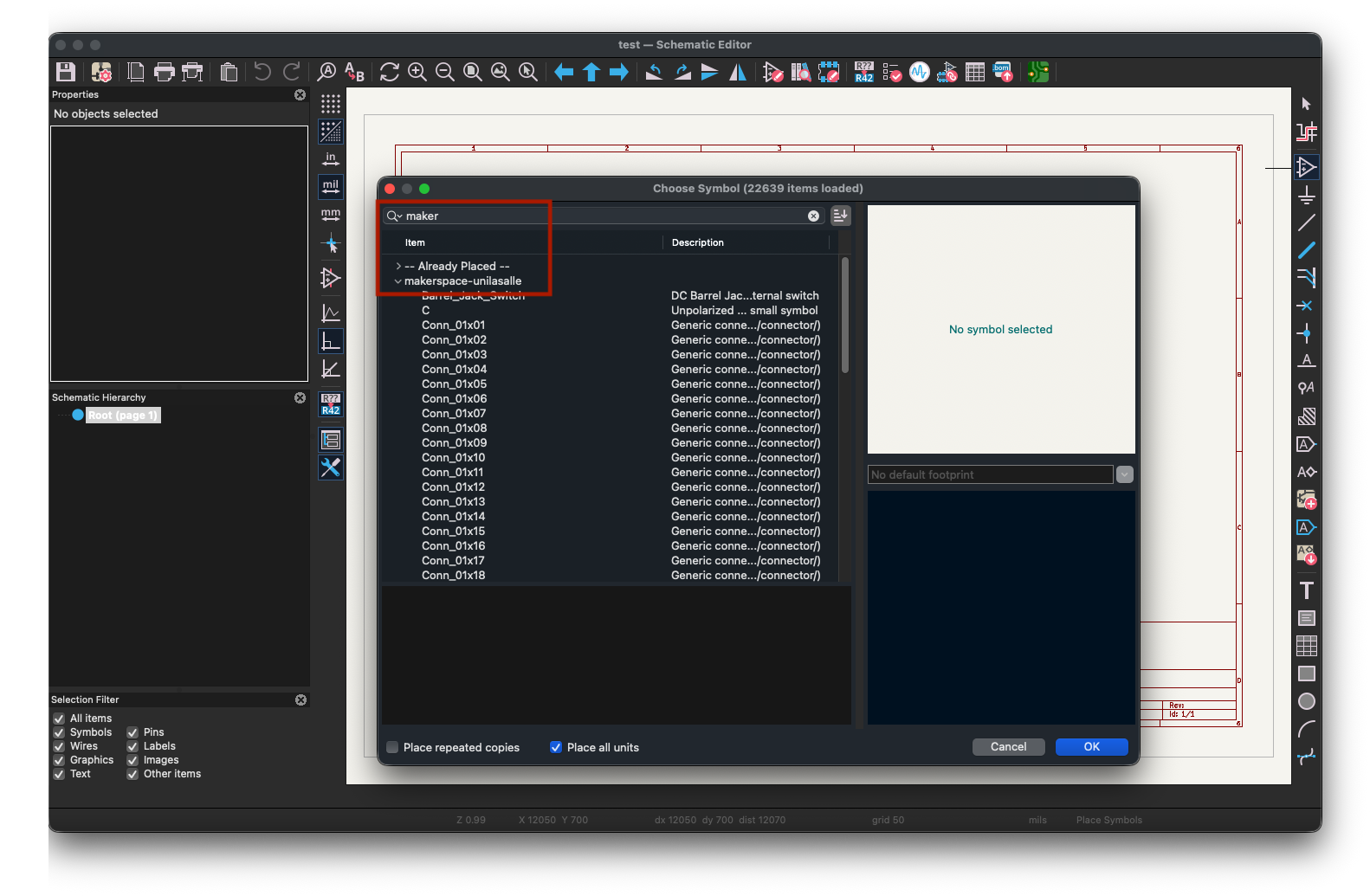
In Eeschema, press A to open the add component window. In the search bar, type Makerspace or the name of a component in stock.
The components of the Makerspace Amiens library should appear in the list, prefixed with the name of the library (Makerspace-Amiens:ComponentName).
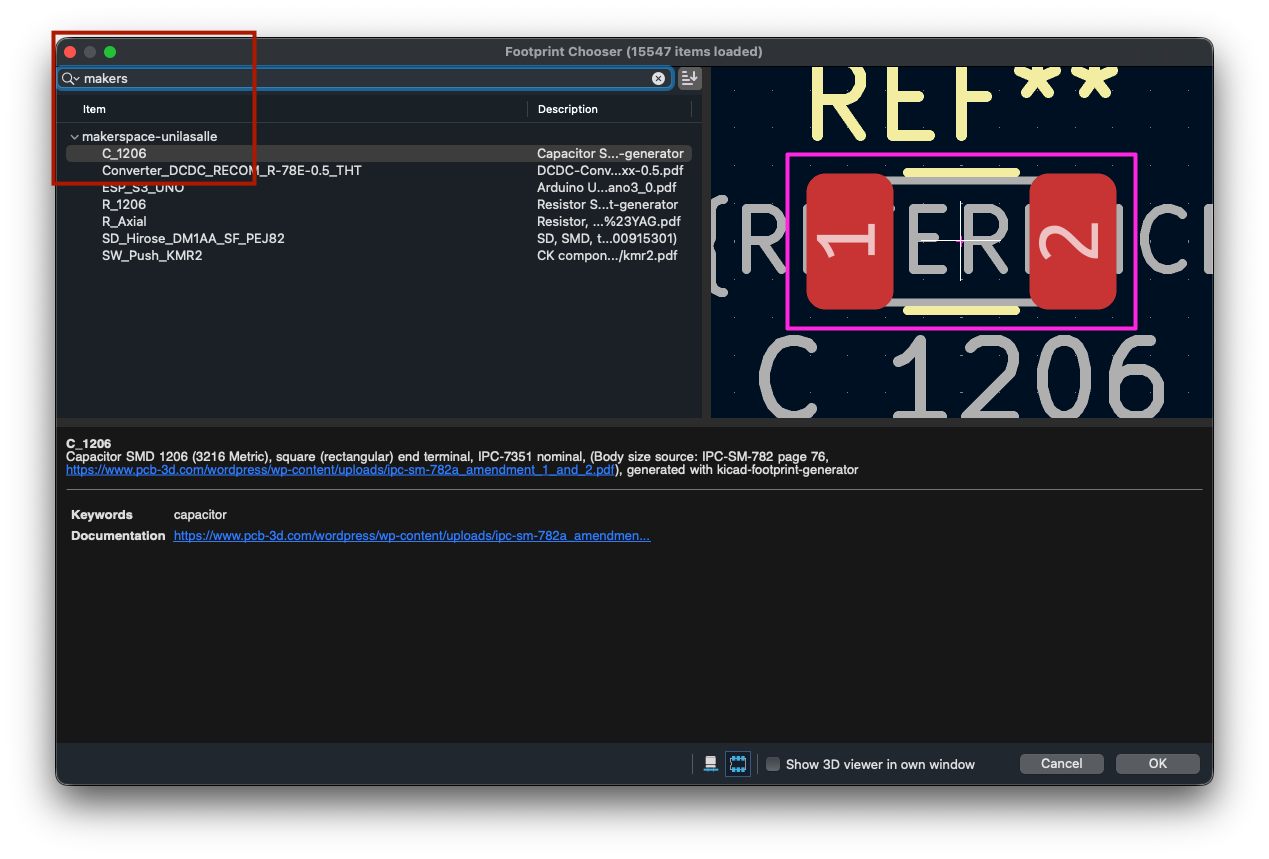
In Pcbnew, open the footprint editor or add a footprint from the menu. Search for Makerspace in the search bar.
The footprints of the Makerspace Amiens library should be listed and previewed correctly.