Screenshots to come
The button labels below match the current GitHub interface.
Put your site online and check that everything works

Publishing your site with GitHub Pages
Enable GitHub Pages on your repo, follow the site build in the Actions tab, then open your site online to check that everything works.
Prerequisites:
Software:
Machines/Tools:
Your repo already contains everything needed to become a website: Markdown files and a Jekyll configuration. But until GitHub is allowed to publish it, it is only a folder of files. In this tutorial, you enable GitHub Pages, GitHub’s free service that turns your repo into a site, then you open your site online.
It is also the check that your repo is in good shape: a site that displays with the template’s example content proves that everything works, before you start changing it. If something breaks later, you will know that the error comes from your changes.
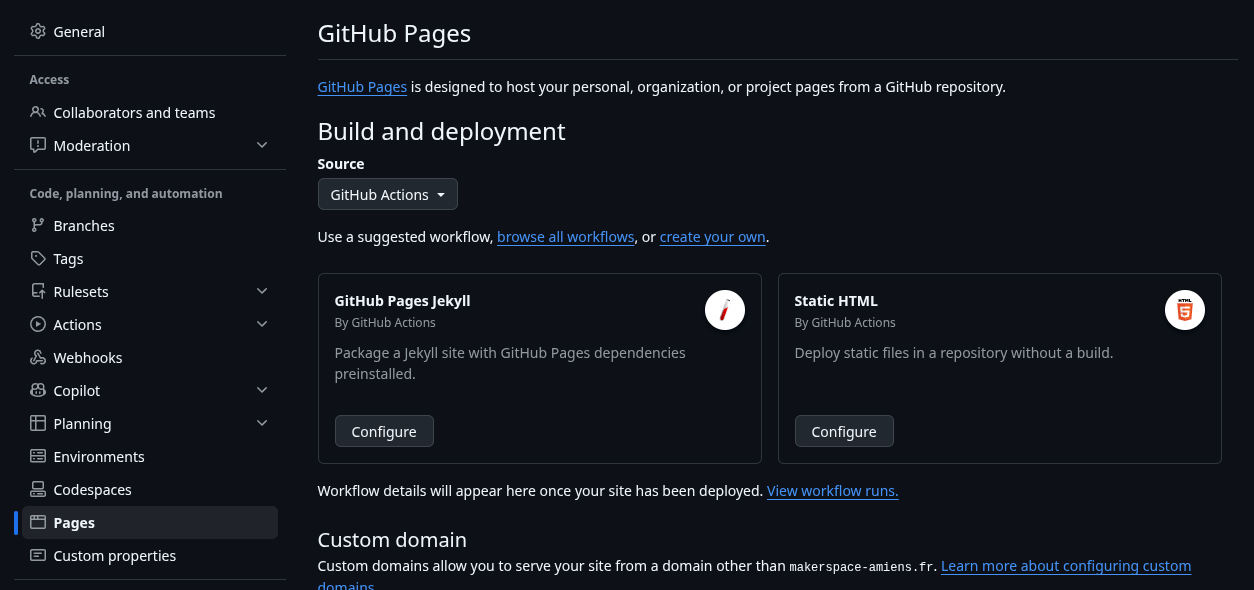
On your repo page, Settings tab (top right), then Pages in the left-hand menu.
Under Build and deployment, Source field, choose GitHub Actions (not “Deploy from a branch”).
The template already contains the build instructions (in .github/workflows/): GitHub uses them as soon as this option is chosen.
Under Build and deployment:
GitHub may already have made this setting by itself, because your repo is called username.github.io: simply check that these are the values.
Open the Actions tab of your repo.
Two workflows start:
If nothing starts, open Deploy Jekyll site to Pages in the list on the left and click Run workflow.
A workflow named pages build and deployment starts: this is GitHub building your site with the MakerSpace theme, then publishing it.
If nothing starts, go back to step 1 and check that you did click Save.
An orange circle 🟠 means “in progress”. Wait for the green tick ✅: allow 1 to 2 minutes. A red cross ❌ means an error: open the run to read it (see Troubleshooting).
Go back to Settings > Pages: at the top, a line Your site is live at shows the address of your site, with a Visit site button. Open it.
The address is of the form https://account.github.io/repo-name/. You should see the template’s example site: home page, navigation menu, Objectifs and Équipe pages, etc.
The address is https://username.github.io, with your username. You should see the example site: avatar, name “Prénom Nom”, menu (Accueil, Projets, Compétences, Blog, Docs, Qui suis-je), one example project and one example article. Click Compétences (skills): the radar chart must be displayed.
It is this example content that you will replace with your own in the rest of the workshop.
Browse a few pages: if everything displays with its layout, your repo is ready.
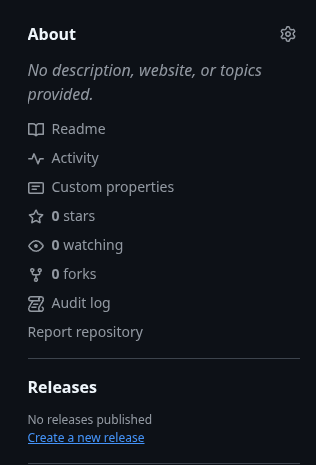
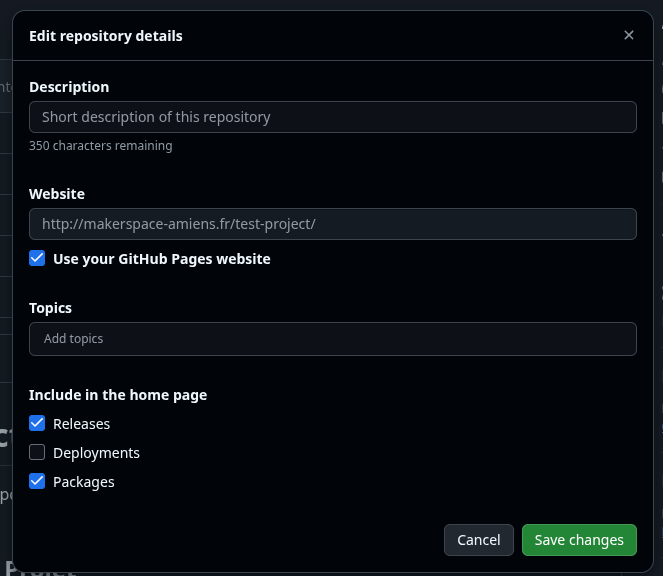
On the home page of your repo, the About card (on the right) is empty by default. Click the gear icon ⚙️ next to its title: tick Use your GitHub Pages website (the link to your site then appears in this card, visible to anyone arriving on the repo), and take the opportunity to fill in the Description field with a sentence that sums up your repo.

In Settings > General, right at the bottom: Social preview. Upload an image (1280×640px recommended): it is what is shown as a preview when the link to your repo is shared (Discord, social media…). For a project repo, the same image as the one used at the top of your README works very well here.
| Symptom | Likely cause | Solution |
|---|---|---|
| Red cross ❌ in the Actions tab | Error in a file (often the YAML front matter: indentation, quotes) | Open the failed run: the file name and the line at fault are given |
| No Your site is live at line in Settings > Pages | GitHub Pages is not enabled, or the first build is not finished | Redo step 1, then wait for the green tick in Actions |
| 404 error at the site address | The build is not finished, or the address was copied wrongly | Wait for the green tick, then use the Visit site button rather than typing the address |
| The site displays without its layout (plain text, broken links) | Portfolio: the baseurl field of _config.yml has been changed |
For a username.github.io repo, it must be "" |
| The site does not update after a change | The build failed, or is not finished; for a project repo, only the docs/ folder triggers publication |
Actions tab: wait for the green tick or read the error, then reload the page with Ctrl + F5 |
As a team: one person only enables GitHub Pages (you need to be an administrator of the repo). Then everyone opens the site on their own computer and checks that it displays.
Enable GitHub Pages, open your site, then submit the address of your site and the address of your repo in the place indicated by your supervisor.
Next step: get the repo onto your computer to edit it with VSCode, in Git, GitHub Desktop and VSCode.