What Git does, in one sentence
Git keeps a complete history of every change to your files, and
GitHub hosts a copy of that history online so that the whole
team works from the same base. The basic cycle, the one you will
repeat dozens of times a week:
graph LR
    A[Edit files] --> B[Stage / select<br/>the changes]
    B --> C[Commit: save<br/>with a message]
    C --> D[Push: send<br/>to GitHub]
- Edit: you edit files as usual, in VSCode or
elsewhere: nothing specific to Git at this stage.
- Stage: you choose which modified files
go into the next commit. Useful if you have worked on two
different things at once: you can commit one without
the other.
- Commit: a snapshot of these changes, with a message that
explains what and why. The commit stays on your computer
until the next push: nobody else can see it yet.
- Push: your commits are sent to GitHub, where the rest of the team
can fetch them.
- Fetch / Pull: the reverse of push (getting the commits that
others have sent to GitHub, so that you have them on your machine too).
Fetch looks at what has changed without downloading anything yet, Pull
downloads and applies the changes.
A shared folder overwrites files without warning when they are edited at the same time. Git keeps every version in the history and warns explicitly in case of conflict. See Resolving a Git conflict.
With GitHub Desktop
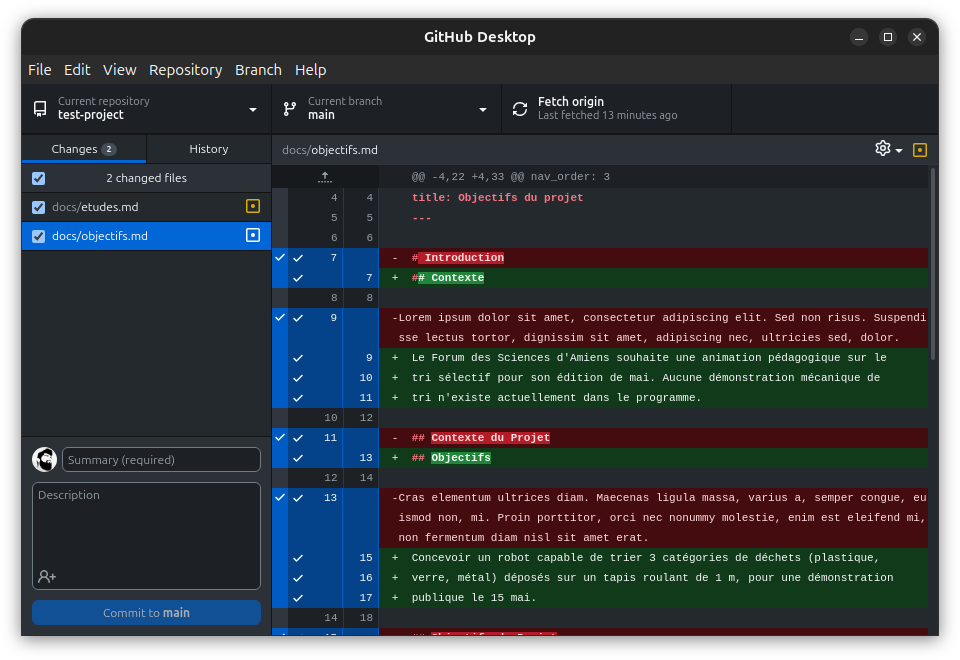
Step 1: See the changes
Open GitHub Desktop and select your repo in the list at the top left. The Changes tab lists all the files modified since the last commit, with a preview of the lines added/removed.
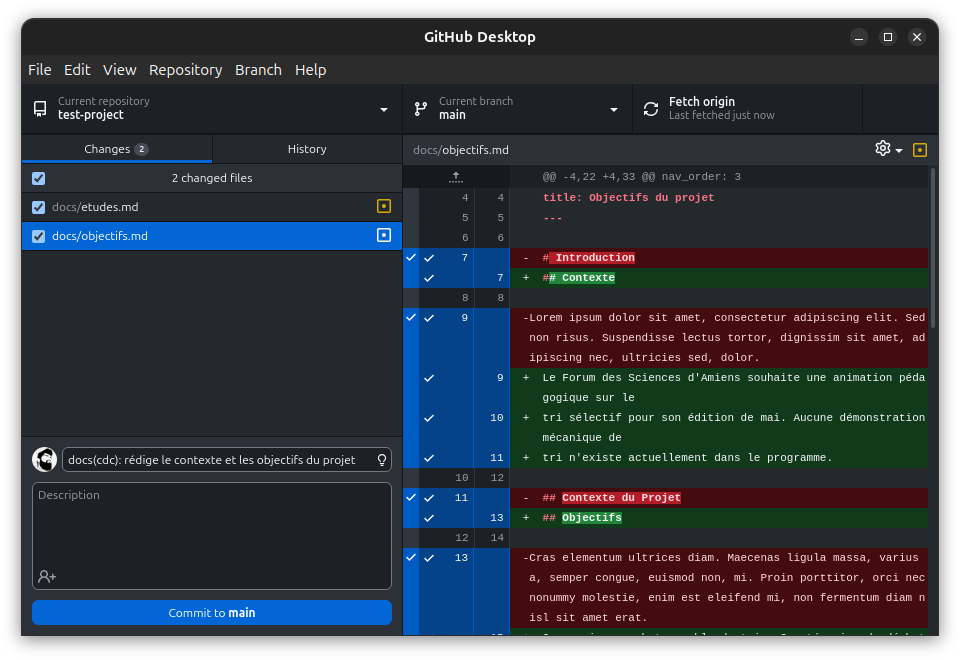
Step 2: Commit
Tick the files to include in this commit (all of them by default). At the bottom left, write a short summary (in the imperative, e.g. “Add the motor speed calculation”) and, if needed, a longer description. Click Commit to main.
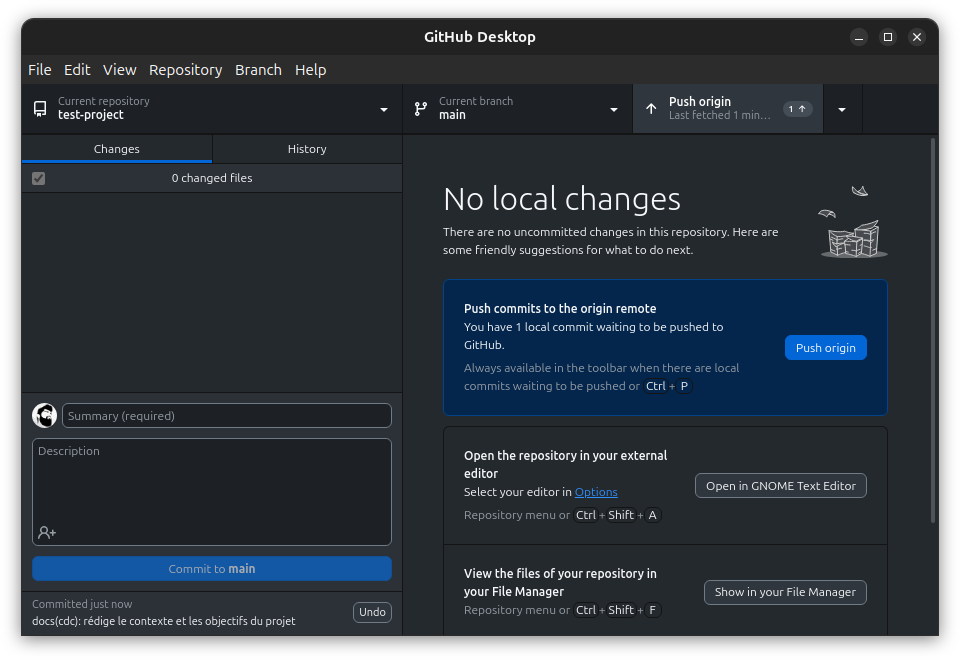
Step 3: Send to GitHub
Click Push origin at the top. Your commits are now visible to the whole team on GitHub.com. Before starting work, also remember to click Fetch origin to get the others’ changes.
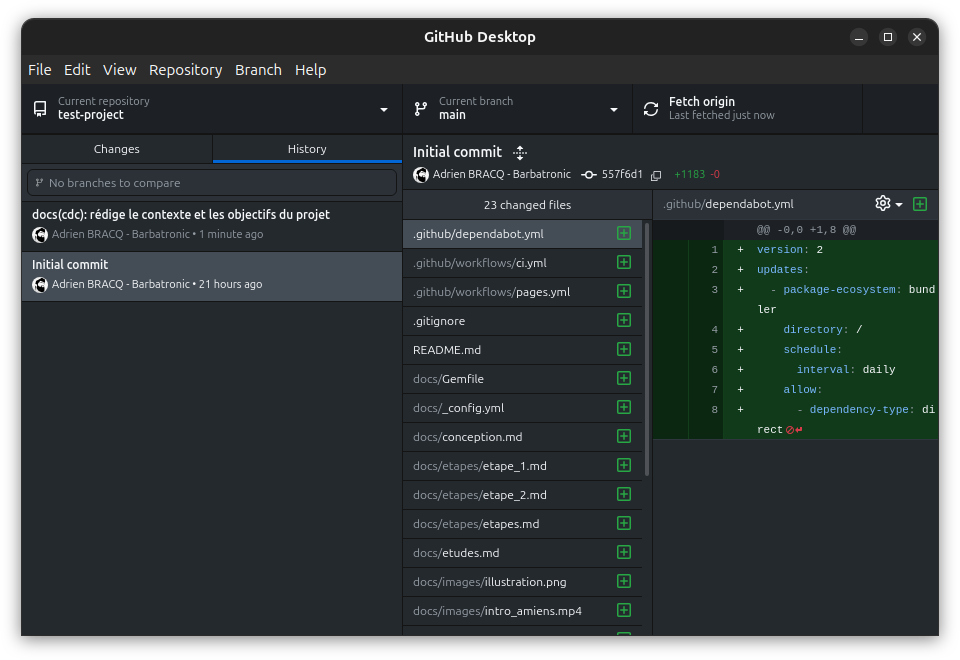
Step 4: Check in the history
History tab at the top: each commit sent appears in the list, with its message and author. This is where you find the complete history of the project, and where you can compare what changed at each commit.
Directly from VSCode
VSCode includes the same functions without switching application: handy
if you already edit your code or your documentation in it. The cycle
is the same as in GitHub Desktop, just spread over four small
actions in the same panel. The screenshots show VSCode in French: the French
labels are given in brackets.
See the changes
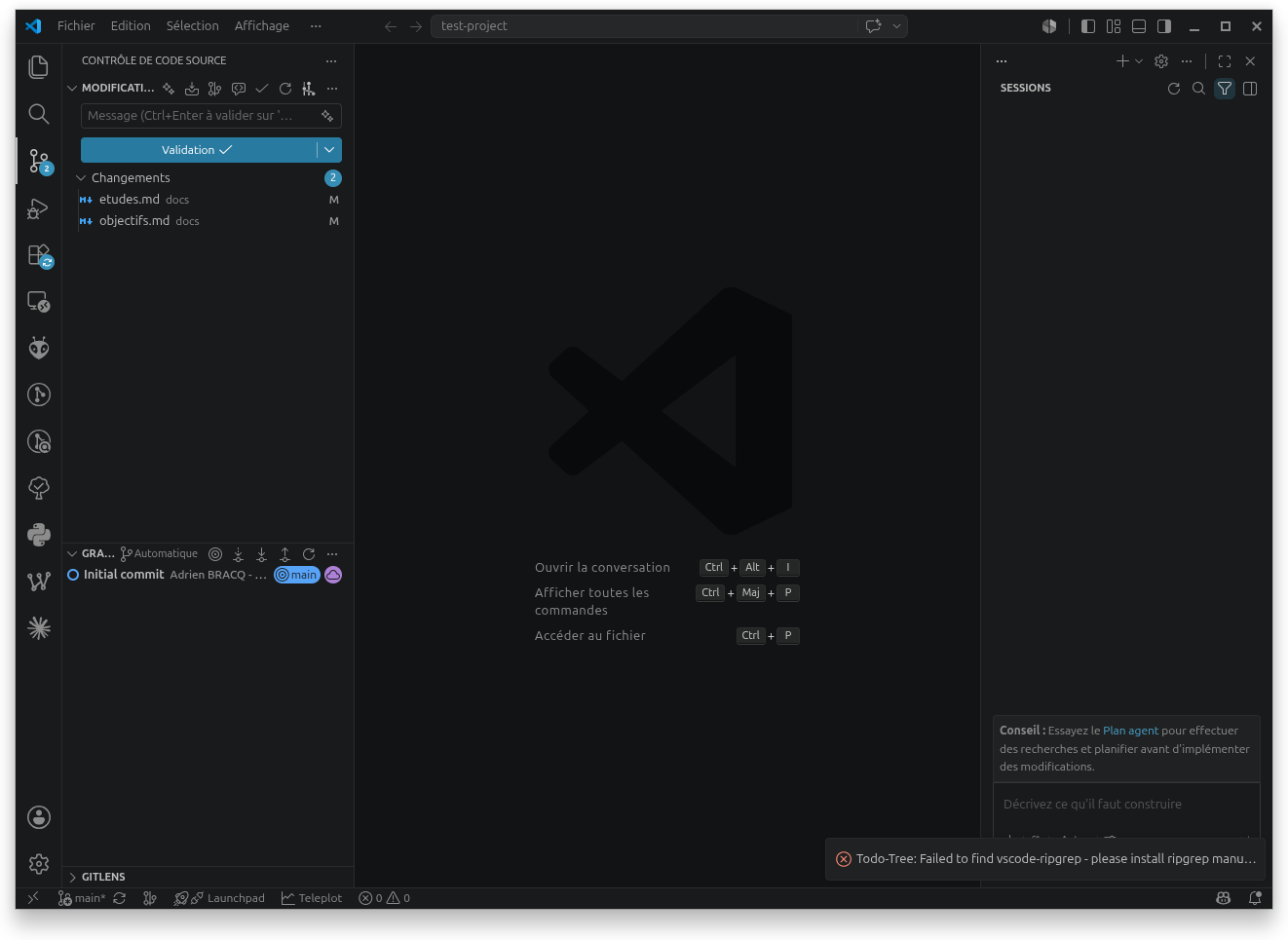
Click the branch icon in the left sidebar (or Ctrl+Shift+G). The modified files appear under Changes (Modifications), with an M (modified) icon.
Stage the files
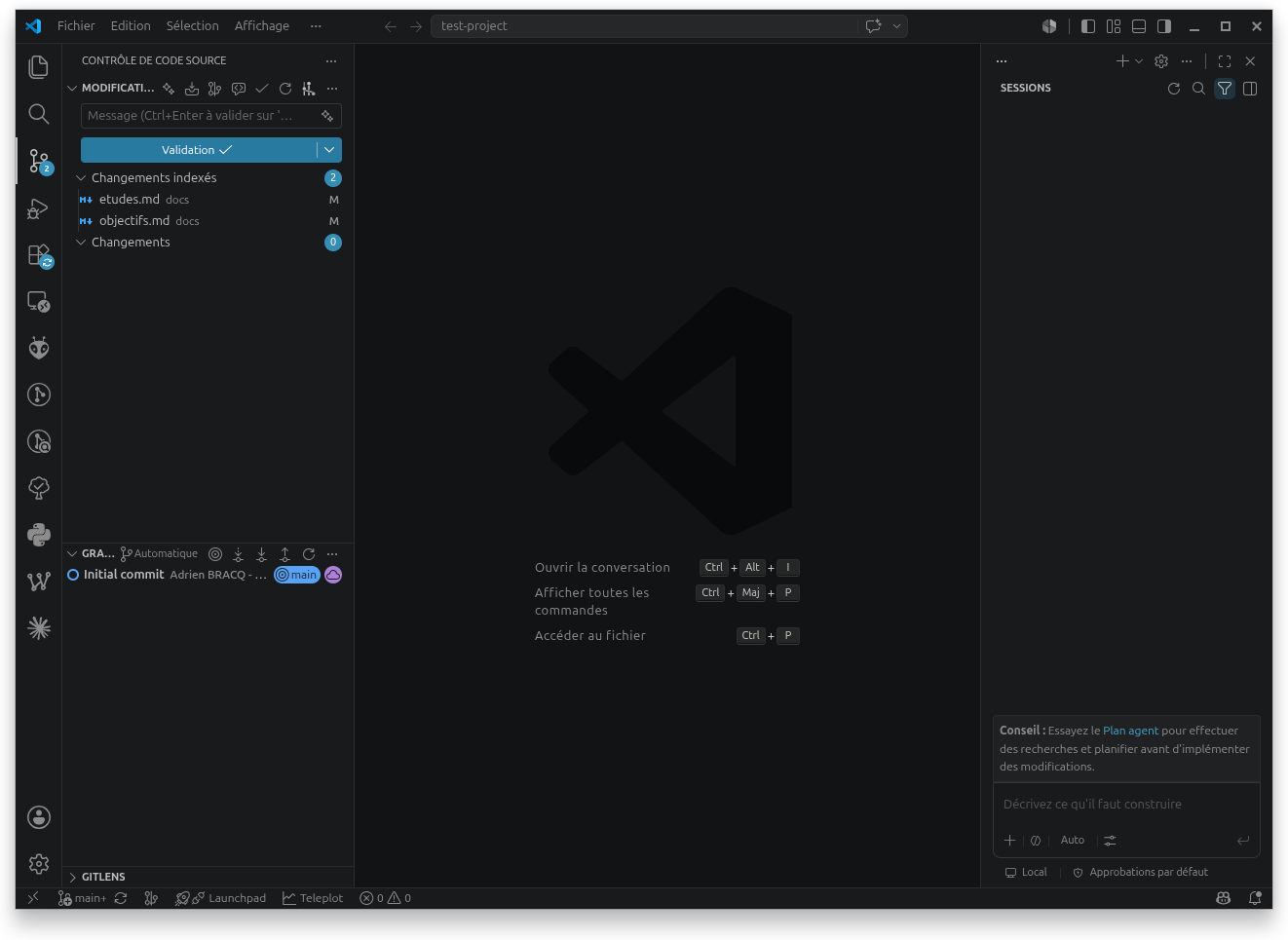
Hover over a file and click the + to stage it (or the + at the top of the Changes list to stage everything at once). The files then move to a separate Staged Changes (Changements indexés) section.
Write the message and commit
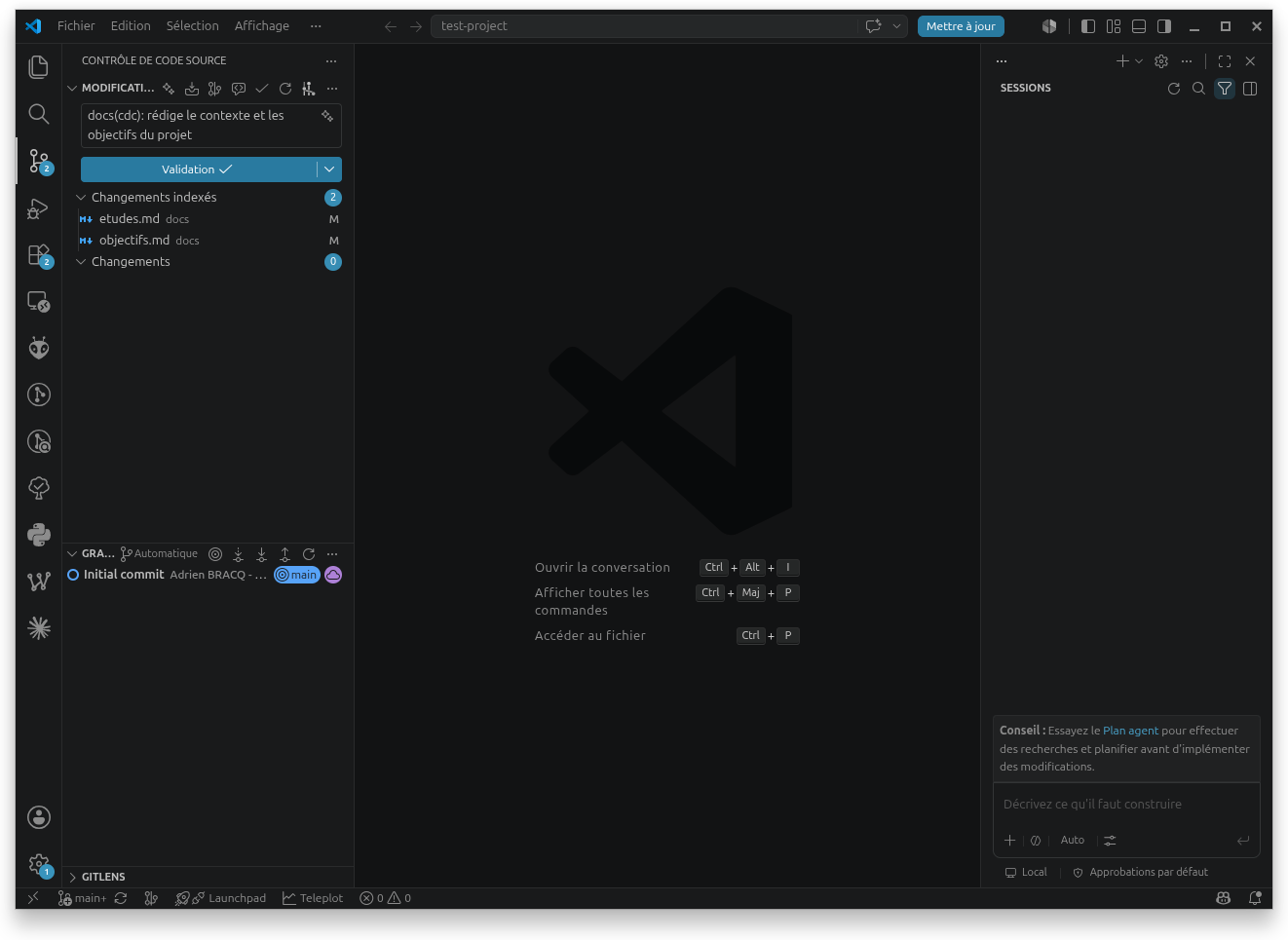
Type your commit message in the text field at the top of the panel, then click Commit (Validation, the blue ✓ button).
Send with Sync Changes
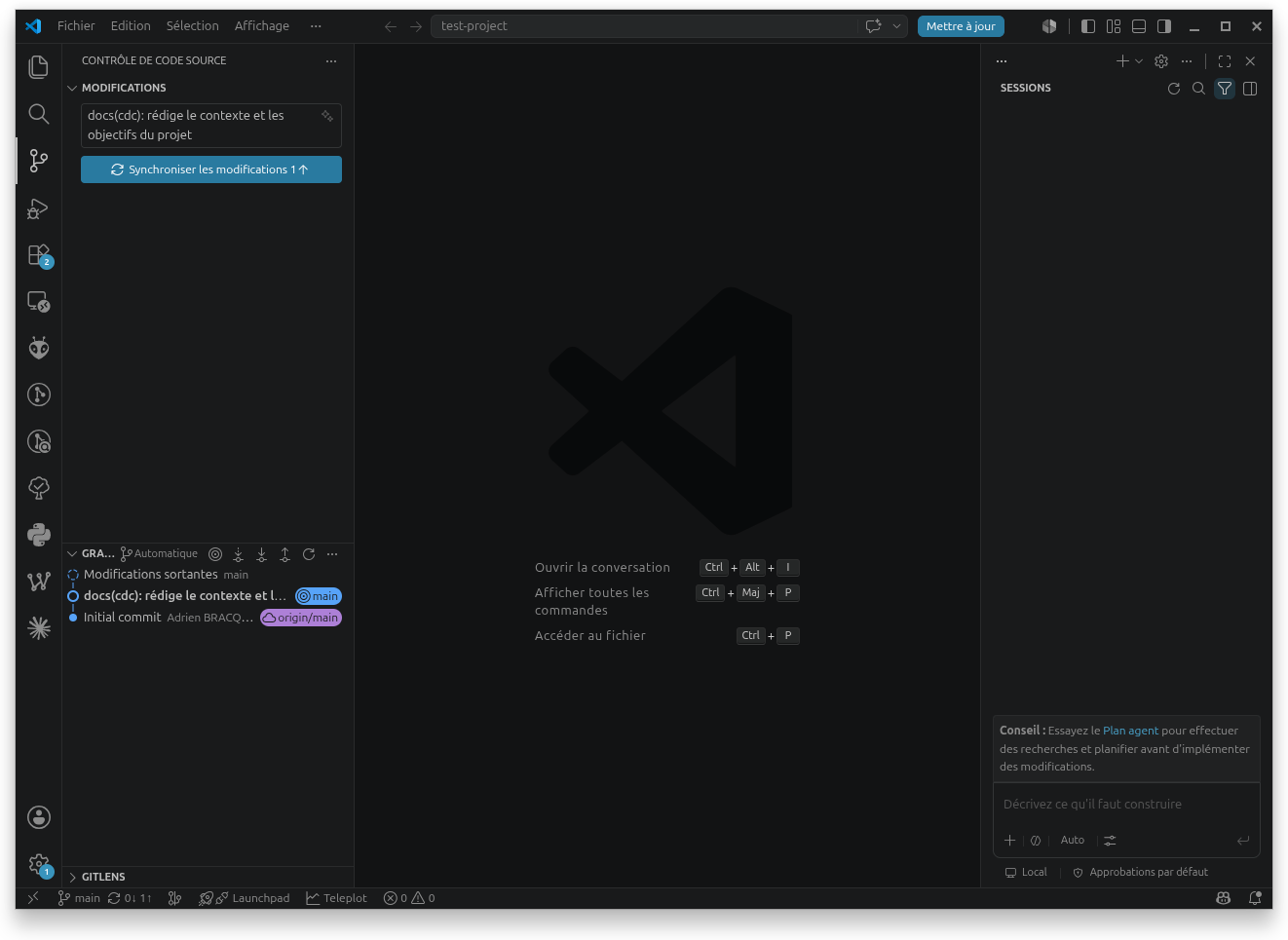
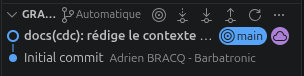
Once the commit is made, the button becomes Sync Changes (Synchroniser les modifications, with the number of pending commits): click it to push (and pull at the same time). The Graph (Graphique) panel (GitLens) at the bottom confirms the commit sent, attached to main.
Small, frequent commits, with a precise message, are better than one giant commit at the end of the day with the message “progress”. A commit should correspond to one coherent change that could be summed up in one sentence.
Troubleshooting
| Symptom |
Likely cause |
Solution |
| “Push” fails with a rejection error |
Someone else pushed before you, your local history is behind |
Do Fetch origin then Pull, resolve any conflicts (see the dedicated guide), then push again |
| A file you do not want to track appears in Changes |
Generated or temporary file not excluded |
Add it to .gitignore |
| The Commit button stays greyed out |
No commit message written, or no file staged |
Check both |
Going further
If you want a more leisurely explanation, in video, of the concepts seen
here (repository, branch, fork, pull request…):
Git and GitHub for Poets,
a series of 11 short videos by The Coding Train, very
accessible even with no technical vocabulary to start with.
Exercise
Edit any file in your repo (for example, add a
line to docs/objectifs.md), then run the complete cycle: stage,
commit with a precise message, push. Check on GitHub.com that your
commit does appear in the history of the repo.